ANDROID LAUNCHER & EPUB READER
CrossPoint for Android
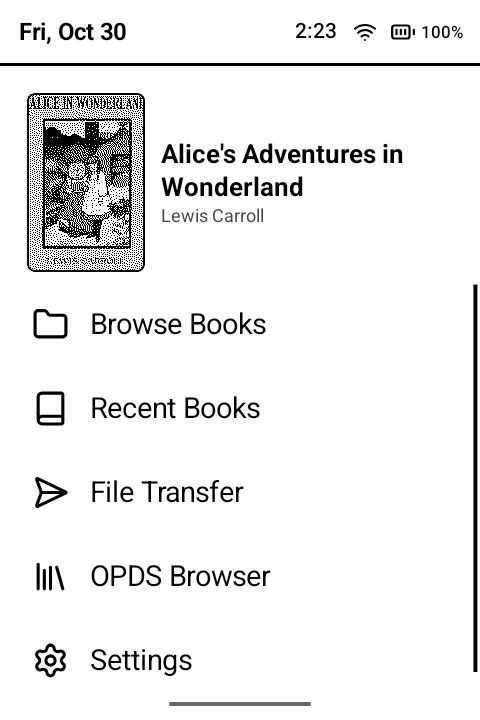
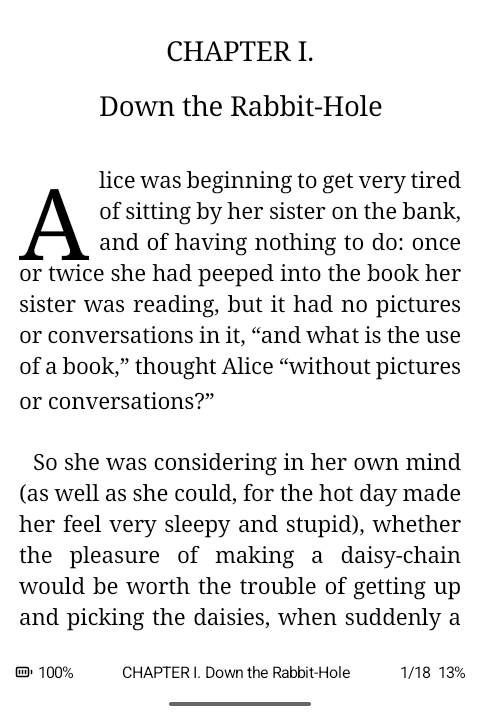
A launcher for Android e-readers with a built-in EPUB reader. Requires Android 10 or newer and support for installing APKs.
Download APK ↓Free and open source
Installation
Download crosspoint.apk and use either method below.
1. USB file transfer
- Download the APK.
Save crosspoint.apk to your computer.
- Connect your reader.
Use a USB data cable, unlock the device, and select File transfer / MTP in its USB notification. On macOS, use an MTP-compatible file transfer app.
- Copy, then open.
Copy the APK into the reader’s Download folder. On the reader, open its file manager and tap the APK.
- Allow the installation.
If prompted, allow Install unknown apps for that file manager, return to the APK, and tap Install. You can turn that permission off afterward.
Already browsing on your reader? Download the APK directly and open it from Downloads.
2. ADB
- Get the tools and the app.
Download Google’s Android Platform Tools and crosspoint.apk. Extract the tools and put the APK in the same folder.
- Enable USB debugging.
In the reader’s settings, enable Developer options (usually by tapping Build number seven times), then turn on USB debugging.
- Connect and authorize.
Connect with a USB data cable. Unlock the reader and accept its USB debugging prompt.
- Run the install.
Open a terminal in the platform-tools folder. Check that the reader is listed as device, then install:
./adb devices
./adb install -r crosspoint.apk
Windows PowerShell: use .\adb.exe instead of ./adb. If you see “unauthorized,” accept the prompt on your reader. You can turn USB debugging off when finished. ADB help ↗
After installation
Open CrossPoint and follow the setup prompts. Allow book storage access so it can find your EPUBs, and choose CrossPoint as your Home app when prompted. You can also change this in Android’s Settings → Apps → Default apps → Home app. Sign in to Sync, or skip sign-in to use local reading.
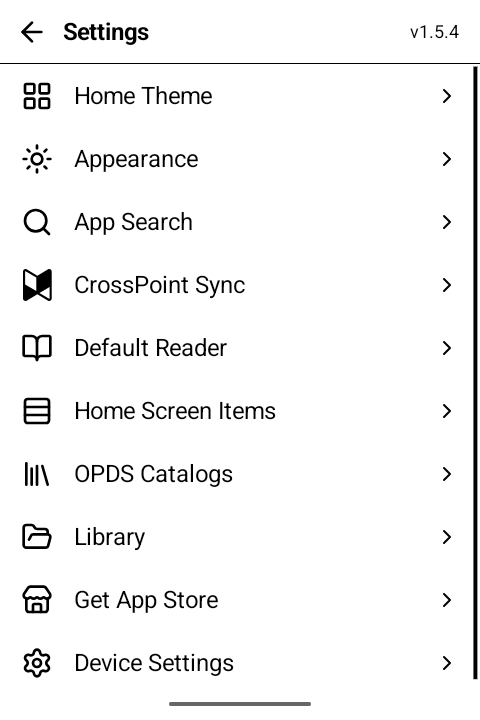
To install other Android apps, open Settings → Get App Store in CrossPoint. This downloads Aurora Store separately; approve the Android installation prompt, then open Aurora to browse Google Play apps. App compatibility varies by device, and some apps require Google Play services.
Menu names vary by device. Keep your existing launcher installed; you can switch back in Default apps.